
If you are an Account Manager (AM) at an agency, you know the struggle: You are the bridge between the client’s goals and the team’s execution. You are constantly juggling client communications, strategy adjustments, and internal resource battles.
Without the right system, you spend your day chasing status updates, digging through Slack for lost files, and praying that the creative team saw that last-minute email from the client.
In this guide, I’m going to walk you through the best practices for Account Management inside ClickUp. We will cover how to organize your hierarchy for maximum visibility, how to centralize client communication, and how to build dashboards that keep your clients happy and your projects profitable.
Whether you're new to ClickUp or looking to optimize your existing workflows, this guide will help you transform ClickUp from a simple task management tool into a powerful command center for all your project management needs.
Cancel chaos.
Create clarity.
You can build a happier, more productive, more profitable team with ClickUp. We'll show you how.

The "Demand" Seat
Before we dive into views and folders, we need to clarify the workflow. In a streamlined agency, there is a specific flow of resources:
Demand, Resource, and Fulfillment.
As an Account Manager, you sit in the Demand seat.
Your job is to work with clients to understand their goals and build a strategy to achieve them. You deploy work into the system based on that strategy, but you don't necessarily plan the day-to-day capacity (that’s the Project Manager’s "Resource" seat) or do the execution (that’s the "Fulfillment" seat).
Your goal in ClickUp is to provide clarity. >You need to provide realistic context to the fulfillment team so they don't waste time on revisions, and you need to work with Project Managers to ensure timelines are achievable>.
Let’s look at how to build a ClickUp workspace that supports this flow.
1. ClickUp Hierarchy for Account Managers
Organization starts with the Hierarchy. If your ClickUp workspace is messy, your brain will be messy.
>We recommend a three-space structure: Growth, Operations, and Delivery>. As an Account Manager, you will live primarily in the Delivery Space.
The Delivery Space Structure
-
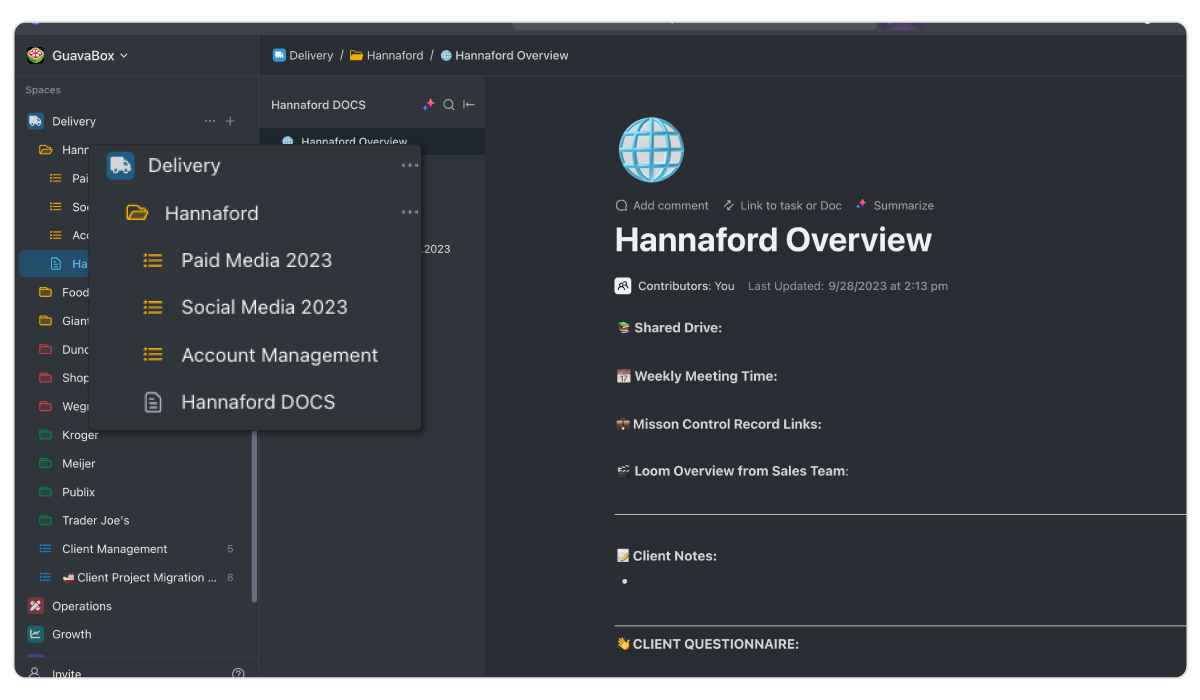
Space: Delivery (Where all client work lives).
-
Folders: Client Names (e.g., Dunder Mifflin, Vance Refrigeration).
-
Lists: Engagement Types (e.g., "SEO Retainer," "Website Redesign Project").
Pro Tip: Color-code your client folders. Assign a specific color to each Account Manager. When you look at the sidebar, you can instantly see which clients belong to you and which belong to other AMs.
Inside the client folder, keep your lists specific to the contract. If you have a monthly retainer, keep all that work in a single list. This makes it incredibly easy to track time against that specific contract and monitor your burn rate.
2. Centralizing Client Communication and Notes
One of the biggest mistakes agencies make is scattering client context across Slack, email, and random Google Docs.
To fix this, create a Client Overview Doc inside every Client Folder in ClickUp. This document becomes your single source of truth.
What goes in the Client Overview Doc?
-
Sales Handoff: Link the Loom video from sales or the initial proposal.
-
Onboarding Questionnaires: Paste the client’s answers about their brand voice and goals.
-
Meeting Notes: Create a nested page for every weekly or monthly meeting.
Turning Notes into Action
The magic of ClickUp Docs is that they are actionable. If you are in a client meeting and you write down a to-do, you can highlight that text and turn it into a task immediately.
Alternatively, if you receive critical context from a client via email, for example, "Don't use the color blue in this campaign". You shouldn't just forward it to the designer. You should copy that text, go to the relevant task in ClickUp, and paste it as a comment, tagging the assignee.
This ensures the context lives where the work is happening.
3. Automating Visibility with Custom Fields
As an Account Manager, you want to see your work without being cluttered by everyone else's.
Here is a tactical trick we love: Folder-Level Automations.
-
Go to your Client Folder.
-
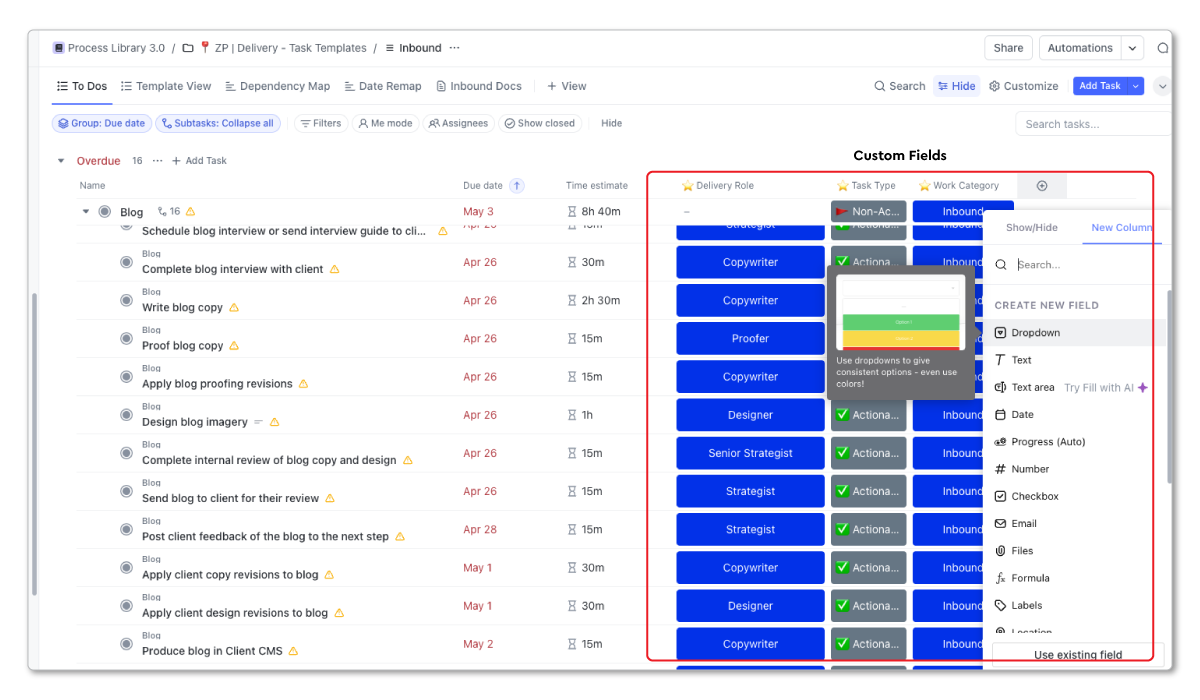
Set up an automation: "When a task is created in this folder, set Custom Field 'Client Lead' to [Your Name]."
-
Apply this to all your client folders.
Now, every single task created for your clients is automatically stamped with your name.
This allows you to create high-level dashboards and filters at the Space level that show you only the work relevant to the accounts you manage.
4. The "Deliverable Progress" View

You shouldn't have to ping five different people to find out the status of a blog post. You should be able to look at one view and know everything.
We call this the Deliverable Progress View.
Create a List view at the Delivery Space level. Group the tasks by the "Client" custom field and filter it so the "Client Lead" is you.
What this view tells you at a glance:
-
What deliverables are in flight for every one of your clients.
-
The status of every deliverable (e.g., "In Progress," "Client Review").
-
Due dates and potential bottlenecks.
-
>Time tracked vs. estimated>.
This view replaces the need for internal status update meetings. If you are jumping into a client call, pull up this view, and you have every answer you need instantly.
5. Standardizing with a Template Library
Account Managers are responsible for deploying work based on strategy. But you shouldn't be building tasks from scratch every time.
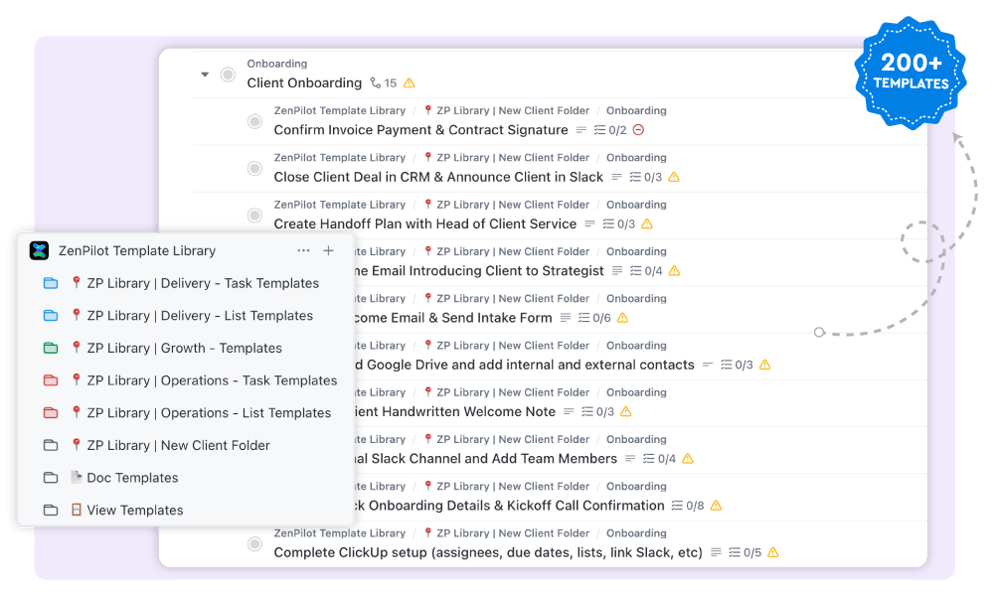
Build out templates for every standard deliverable you offer (e.g., "Podcast Episode," "SEO Audit," "Client Onboarding").
These templates should include:
-
Parent Task: The name of the deliverable.
-
Subtasks: Every step required to complete the work (Draft, Edit, Design, Publish).
-
Embedded SOPs: Links to instructions on how to do the work in the task description>.
When you agree on a strategy with a client, you simply go to your Template Library, load the "Blog Post" template, rename it, set a tentative due date, and apply it.
Then, your Project Manager takes over to resource it based on team capacity. This ensures you are setting the team up for success with a standardized, consistent process.
6. Providing Clarity to Clients
Clients cause fires when they lack clarity. When they don't know what you are working on, they start asking panic-induced questions.
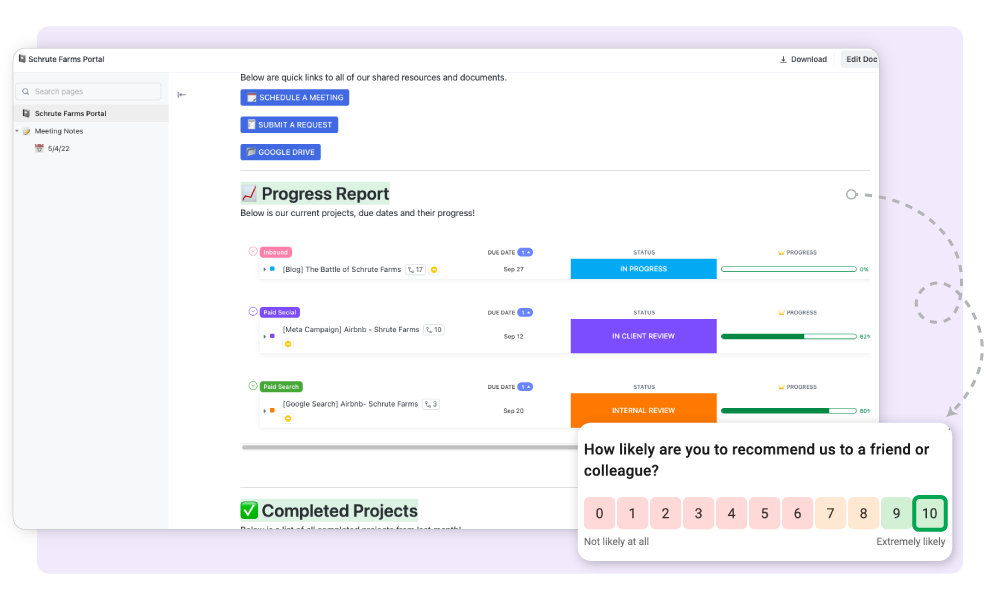
You can solve this with a Client Portal in ClickUp.
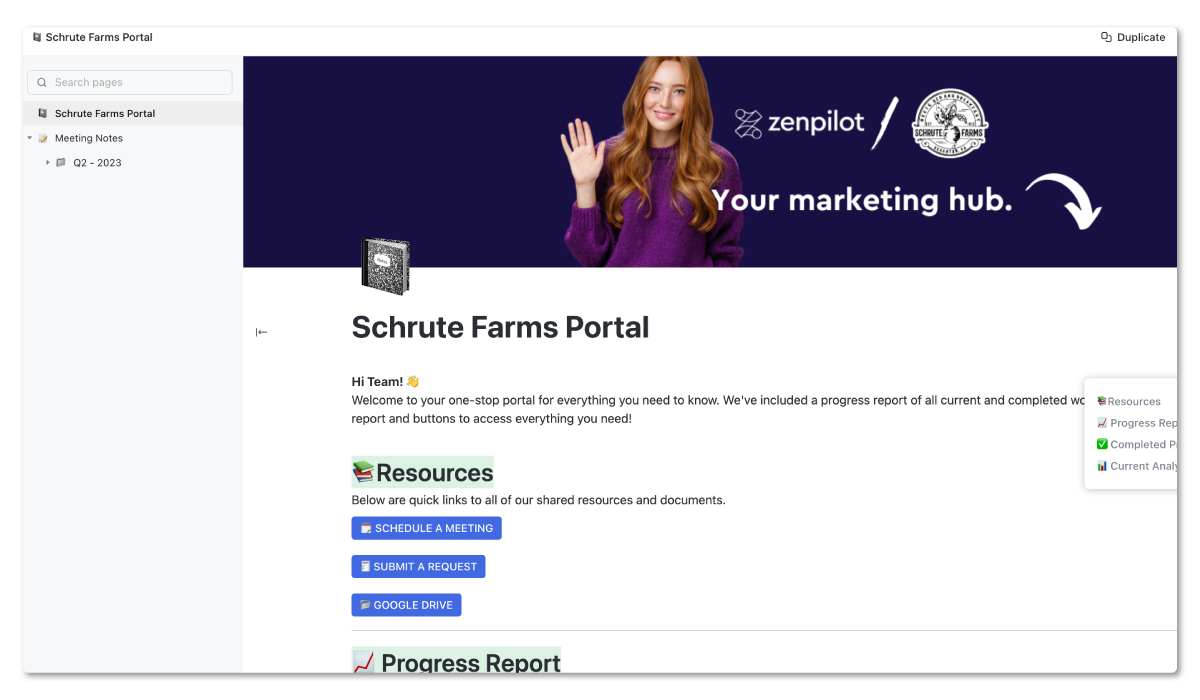
You don't need complex external tools. You can build a portal using a ClickUp Doc.
-
Create a public Doc.
-
Embed a List view filtered to show "Completed Work" (Status = Closed).
-
Embed a List view filtered to show "Work in Progress" (Status = Active).
-
Share the public link with your client.
Now, your client has a permanent link they can visit to see exactly what has been done and what is coming up.
This builds massive trust and reduces the "Hey, where are we at with X?" emails.
7. The Client Health Tracker
Managing the work is one thing; managing the relationship is another. You need a place to track the health of your accounts, separate from the daily tasks.
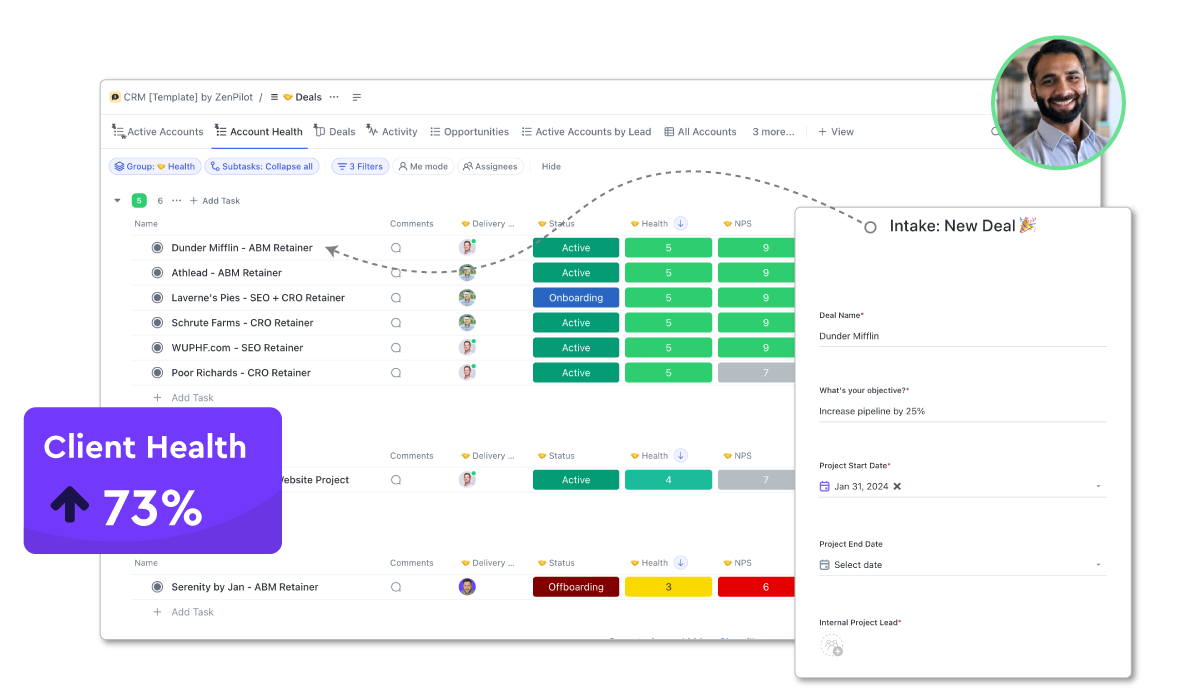
We recommend building a Client Health Tracker list. This acts as an internal CRM. Each task represents a client account (not a deliverable).
Key Custom Fields to include:
- Health Score: A 1-5 rating (5 = Raving Fan, 1 = Churn Risk)>.
-
Weekly Update: A text area for your notes.
-
Renewal Date: When is their contract up?
-
NPS Score: Their latest Net Promoter Score>.
The Weekly Ritual: Every week, go into your Health Tracker. Update the Health Score.
Write a comment answering these questions:
-
Why might this customer be unhappy right now? (Be proactive!)
-
Have there been strategy changes?
-
What do I need help with?
This creates a history of the relationship. If a client churns, you can look back and see exactly when the health score started to dip and why.
8. Financial Visibility: Tracking Burn Rates
Finally, a great Account Manager balances client requests with the budget. You cannot say "yes" to everything if it makes the agency unprofitable.
By organizing your work into Retainer Lists and ensuring the team tracks time, you can build dashboards that show:
-
Hours Estimated vs. Hours Tracked.
-
Budget Remaining.
-
Invoicing Status.
If you integrate ClickUp with tools like QuickBooks or Xero, or simply use custom fields to track invoice statuses, you can see if a client is behind on payments before you hop on a strategy call.
Conclusion
Being a great Account Manager isn't just about being good with people; it's about being organized.
When you use ClickUp to centralize your communication, standardize your service delivery, and visualize your account health, you stop being a reactive firefighter. You become a proactive strategic partner.
Key Takeaways for AMs:
-
Centralize: Keep all notes and tasks in the Delivery Space.
-
Standardize: Use templates for every deliverable.
-
Visualize: Use Space-level views to see all your accounts at once.
-
Communicate: Use Client Portals to keep clients informed.
Before you get started
Take the Agency Project Management Benchmark Assessment so you know what areas to prioritize.
Frequently Asked Questions
Should Account Managers assign tasks to specific creatives?
Generally, no. The Account Manager sits in the "Demand" seat (defining what needs to be done), while the Project Manager sits in the "Resource" seat (determining who does it and when).
AMs should deploy the unassigned tasks from templates, and PMs should assign them based on capacity.
How do I handle client emails in ClickUp?
You have two options: use ClickUp's email integration to forward emails directly into a task, or simply copy the relevant context from the email and paste it as a comment on the task.
The goal is to ensure the team executing the work has the context without needing access to your inbox.
Can clients edit tasks in the Client Portal?
If you share a Public Doc or Public View, it is read-only.
This is usually best for reporting.
If you want clients to comment, edit, or approve tasks, you will need to invite them as a Guest into your ClickUp workspace (available on paid plans).
What is the difference between the Client Health Tracker and the Delivery Space?
The Delivery Space is for the actual work (blog posts, ads, designs). The Health Tracker is for the relationship (contract dates, sentiment, satisfaction scores).
Keep them separate so your relationship data doesn't get buried in a mountain of subtasks.