
Can ClickUp Be Used as a CRM? The Honest Answer (+ Setup Tutorial)

Can ClickUp be used as a CRM? Yes. Using lists, custom fields, and relationships, you can build a working CRM in ClickUp that tracks deals, companies, and contacts, runs a visual pipeline, and lives inside the tool your team already works out of every day.
Should you? That depends. For small sales teams and for account management (tracking client health, goals, and history after the deal closes), a ClickUp CRM is genuinely great. For larger sales teams that need drip campaigns and advanced marketing automation, a dedicated CRM still wins, and I’ll show you exactly where that line sits.
Quick credibility check before you trust me with your client data: I work at ZenPilot, ClickUp’s first and highest-rated Solutions Partner. We’ve implemented ClickUp for 3,100+ clients since 2013, and a huge chunk of those builds included some version of the CRM I’m about to walk you through. We also sell a ClickUp CRM template, so I have an obvious incentive to tell you ClickUp is a perfect CRM.
It isn’t. So let’s start with where it wins and where it loses.
ClickUp CRM vs a Dedicated CRM: When Each Wins
Here’s the framework I give clients who ask this on calls.
Use ClickUp as your CRM when:
- Your team already lives in ClickUp - the biggest CRM failure mode is nobody updating it. A CRM inside your daily work tool gets updated because it’s already open.
- Account management is the main job - client health scores, goals, billing notes, weekly updates, and renewal context sit right next to the delivery work. No dedicated CRM puts your client data that close to the actual projects.
- Your sales motion is simple - a founder plus a couple of reps working a pipeline of deals. Board views, custom fields, and forms handle that comfortably.
- You want one source of truth - sales context flows straight into onboarding and delivery without an export, an integration, or a “did anyone check the CRM?” Slack message.
Use a dedicated CRM when:
- You need email marketing automation - ClickUp can auto-send an email after a form submission, and the Email ClickApp lets you send emails from tasks. But you can’t build multi-step drip campaigns or advanced email workflows in ClickUp, and pretending otherwise ends badly.
- Your sales team is large - once you have a real sales org running high deal volume, tools like HubSpot, Salesforce, or Pipedrive offer advanced CRM capabilities that ClickUp doesn’t. I would not recommend running your entire CRM database out of ClickUp at that scale.
- Marketing owns the top of your funnel - if lead scoring, campaign attribution, and nurture sequences drive your pipeline, buy the tool built for that.
And this isn’t either/or. Plenty of our clients run HubSpot for sales and a ClickUp CRM for account management, connected so closed-won deals flow straight into delivery. We wrote up that setup in our ClickUp and HubSpot integration guide.
Still with me? Good. Here’s how to actually build it.
How to Build a CRM in ClickUp: Step-by-Step Tutorial
The build has six steps: a dedicated space, three core lists, custom fields, relationships to connect them, views to see your pipeline, and a weekly update habit that makes the whole thing worth having.
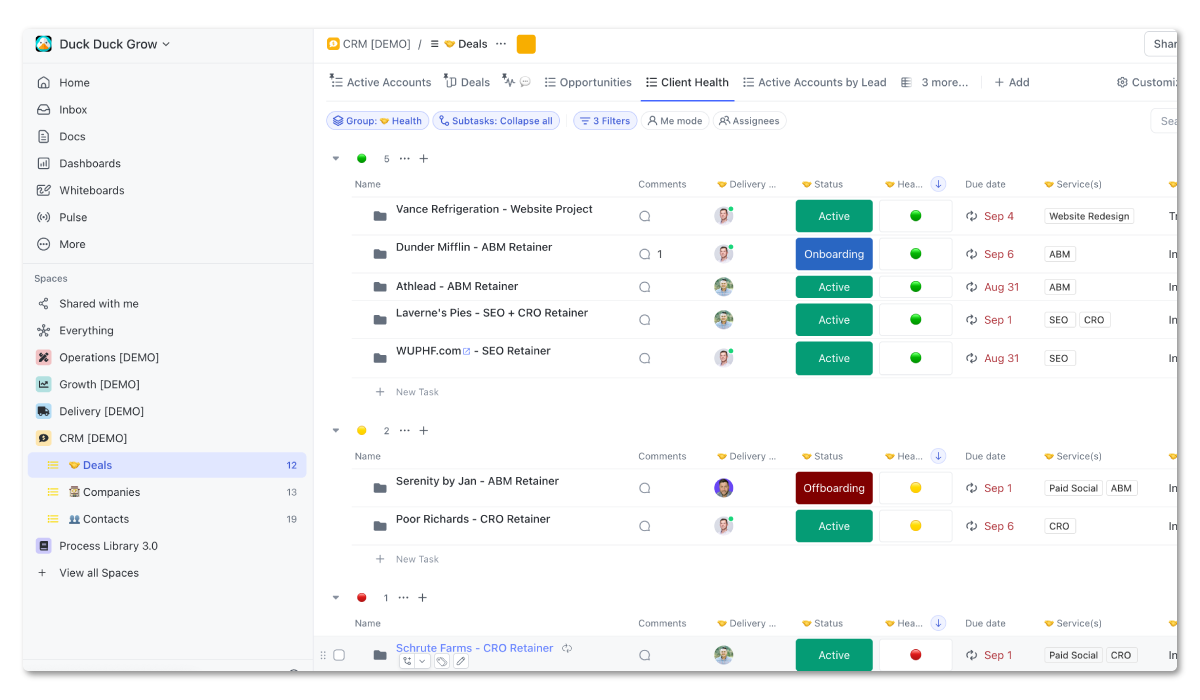
Step 1: Create a Dedicated CRM Space
Start by adding a new space called CRM. This keeps your client data separate from the actual work living in your growth, delivery, and operations spaces.
Related: The Best ClickUp Hierarchy for Agencies
When creating the space, you’ll have options to add views, statuses, and ClickApps. Keep it simple at first and layer in advanced features as you go. One worth knowing about early: the Email ClickApp lets you send emails directly from ClickUp tasks, which centralizes communication on your deal records.
For statuses, keep them consistent across the space. Usually just “Open” and “Closed” are needed, because the interesting detail (deal stage, account status) lives in custom fields, not statuses.
ClickUp CRM Template
Skip the build. Get the complete ClickUp CRM template we install for clients - deals, companies, contacts, views, and fields, ready to import.
Get the Template →Step 2: Build Your Core Lists (Deals, Companies, Contacts)
Within your CRM space, create at least one list: Deals. This holds all of your deal information.
The other two lists are optional but recommended, because they give you the record types a HubSpot or Salesforce would display:
- Deals - individual deal or project records. One company may have multiple deals (e.g. Dunder Mifflin - Website Project and Dunder Mifflin - ABM Retainer, billed separately).
- Companies - one record per client company.
- Contacts - individual people, linked to their companies.
Step 3: Add Your CRM Custom Fields
Custom fields are the heart of your ClickUp CRM. They hold all the information that makes this a single source of truth instead of another task list.
Your Deals list carries most of them. Essentials:
- Status - dropdown categorizing each deal: “Onboarding”, “Active”, “Off-boarding”, “Inactive”.
- Health Score - dropdown for internal client health, either green/yellow/red or a 1-5 scale.
- Services - label field for which services are attached to each deal.
- Objectives - text field for the goals of each retainer or project.
- Billing - text field for billing stages and statuses.
- Start/End Date - date fields to track engagement length.
- Delivery Lead - people field tying each deal to an account manager.
Add others as needed: Sales Lead, Revenue, NPS Score, SLAs. This data can be updated manually or pulled from another tool via automation (for example, piping Retently NPS scores into ClickUp through a Make automation).
Then add fields to Companies and Contacts:
- Company address - a Location field, which you can display on a Map view to see where your clients are.
- Team size - a number field for client headcount.
- Email - an email field for contact addresses.
- Phone number - a phone field for contact numbers.
You can also add fields for company URLs, LinkedIn profiles, and job titles.
Step 4: Connect Records With Relationships
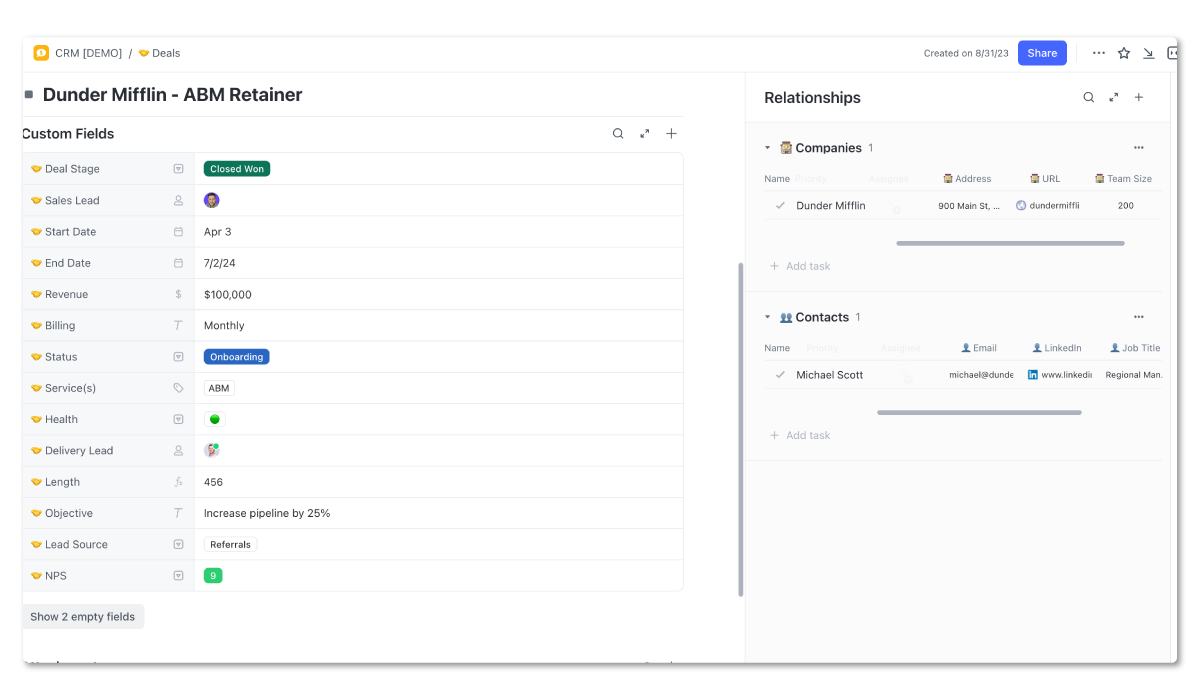
This is where it starts to feel like a real CRM. ClickUp’s relationships feature connects your lists so you can pull contact and company data into your deal records.
In the Deals list, create a new custom field and choose Relationship (if you don’t see it, turn on the Relationships ClickApp). Then narrow the field to only show options from your Contacts and Companies lists.
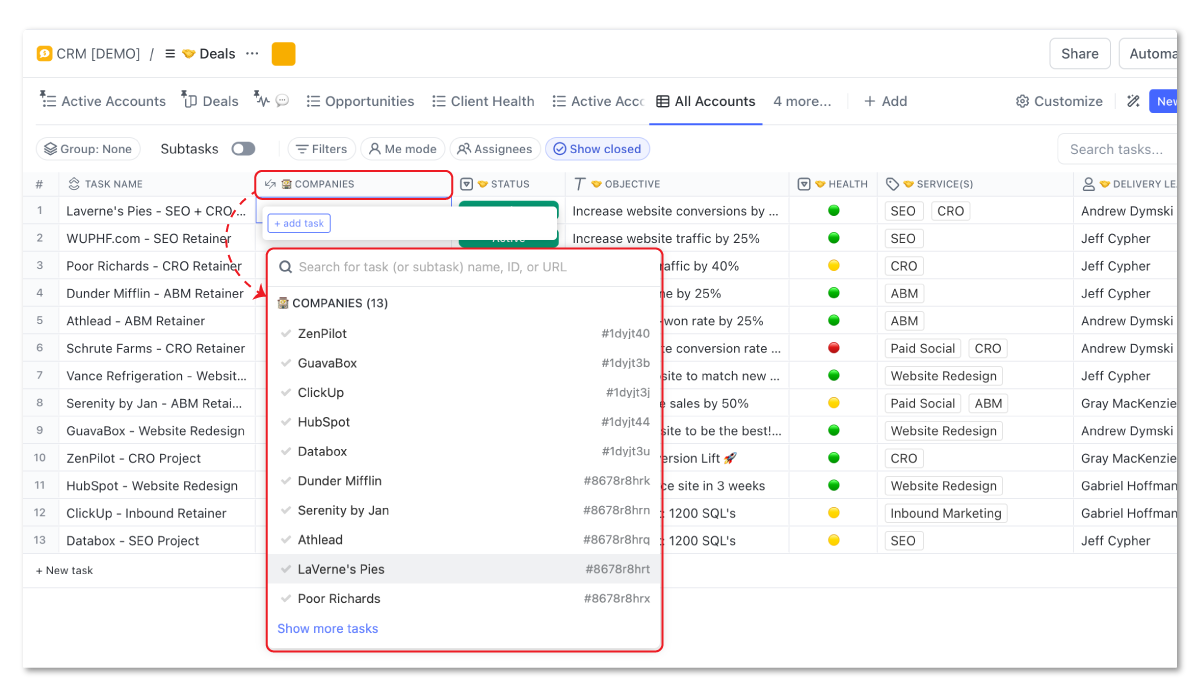
Once the field exists, start linking deals, companies, and contacts to each other. Key info rolls up into each deal record for fast access and reporting.
Step 5: Build Your Pipeline and Account Views
Views are where ClickUp earns its keep as a CRM. Filter and group your records to see exactly what’s happening across accounts:
- Active Accounts - a list view filtered by the Status dropdown so inactive deals disappear.
- Client Health - a list view grouped by Health Score to instantly see which accounts are thriving and which are wobbling.
- Accounts by Delivery Lead - a list view grouped by the Delivery Lead field to see each person’s book of business at a glance.
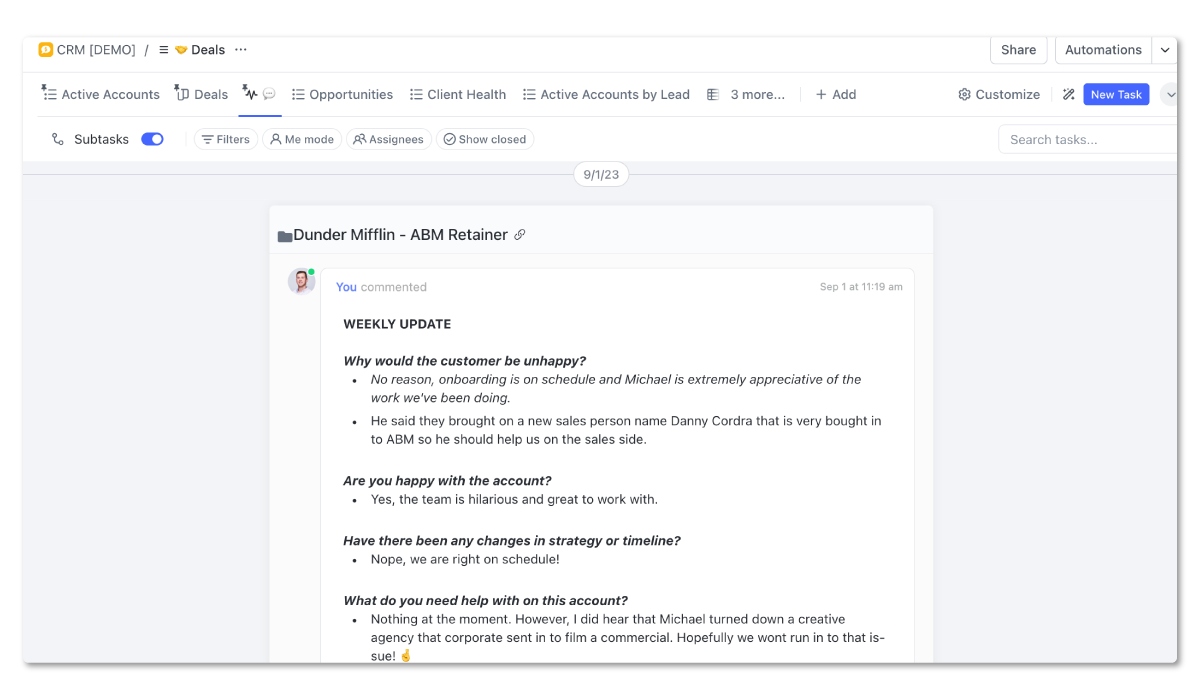
- Weekly Updates - an activity view showing all account manager comments in one stream.
- All Accounts - a table view of the whole database, every account and every field.
- Inactive Accounts - filtered to inactive deals, with a Primary Inactive Reason field so you learn why clients leave.
- Opportunities - a board view built on a Deal Stage field. Columns are deal stages, and it works very much like a HubSpot pipeline. For a deeper dive on running your pipeline this way, read our ClickUp lead tracking guide.
- Client Map - a map view on the Companies list using the Location field.
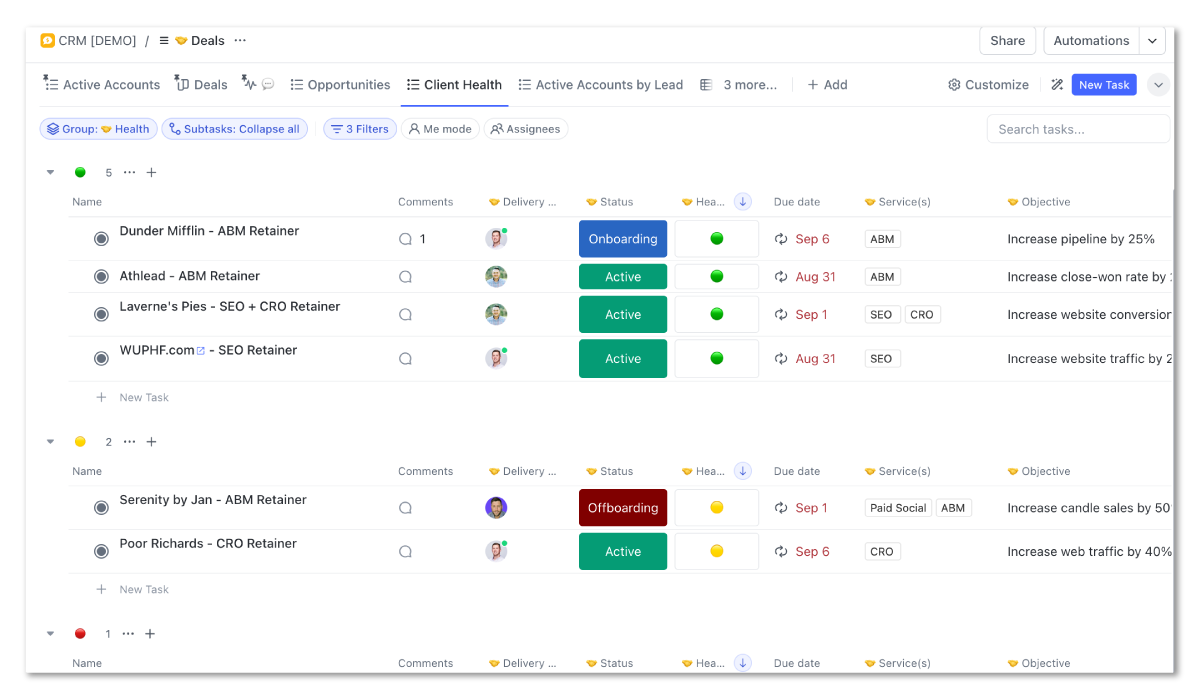
When you build your own, think about what data you need to see, add it as a custom field, then filter, sort, and group on it inside ClickUp views.
The structure matters. But the most important component of this CRM is the next step.
Step 6: Run Weekly Account Updates
Each deal is a task in ClickUp (use ClickUp’s Task Types feature to label them as Record tasks). And like any task, each one has a comments section.
That comments section is your account management engine. Every week, whoever owns the deal leaves an update on the record. Give them a template to follow, covering questions like:
- Why would the customer be unhappy?
- Are you happy with this account?
- Any changes in strategy or timeline?
- What help do you need on this account?
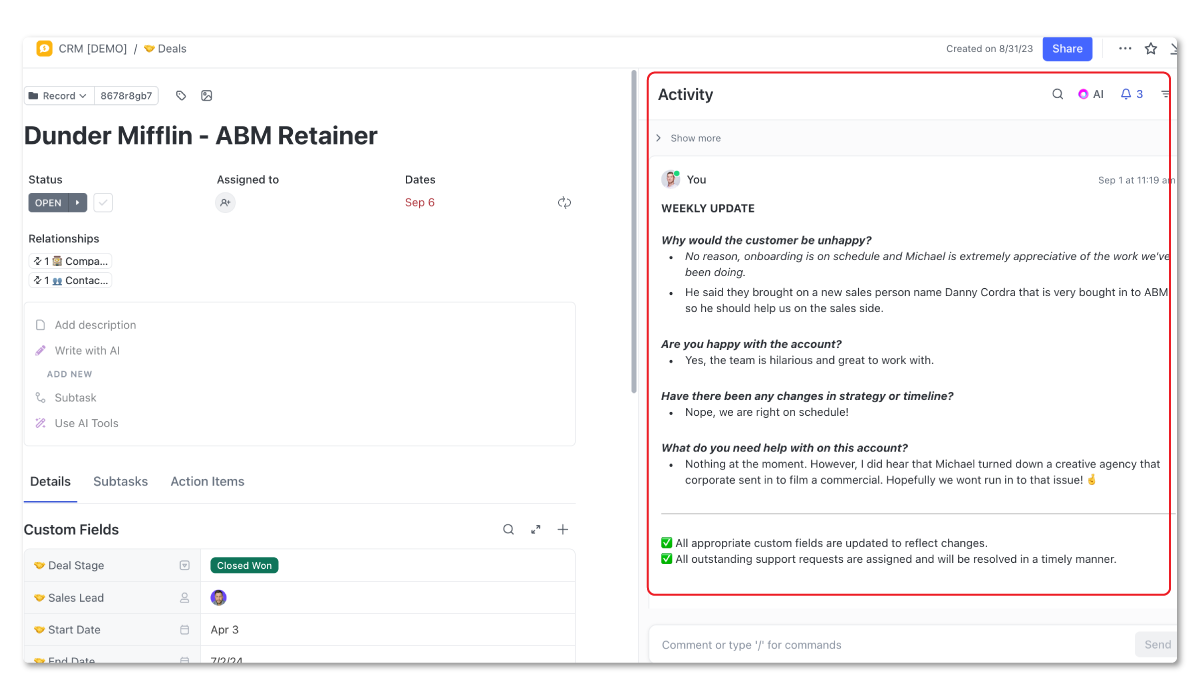
Answer those weekly and you build a system of accountability, a live read on client health, and a historical database that turns into a gold mine. You can go back in time and see how clients progressed, why you lost the ones you lost, and why your best clients love you. Leadership can spot a client fire before it starts, and they’ll know exactly when it’s time to ask for a case study.
The Weekly Updates activity view from Step 5 gives leadership one central stream of every client update across the company.
And if you’re wondering what AI can do with all that account history, read our ClickUp AI breakdown. A CRM full of weekly updates is exactly the kind of clean context that makes ClickUp’s AI answers useful instead of confidently wrong.
Download the Complete ClickUp for Agencies Guide
The 47-page guide includes graphics, checklists, and links to how-to videos so you can actionize your ClickUp plan.
Get Instant Access →Leveling Up Your ClickUp CRM
Once the basics work, a few upgrades streamline more workflows and capture more data.
Create an Intake Form for New Deals
To standardize the sales-to-delivery handoff, create a form view on your Deals list. Sales fills it out when a deal closes, using your custom fields as form fields.
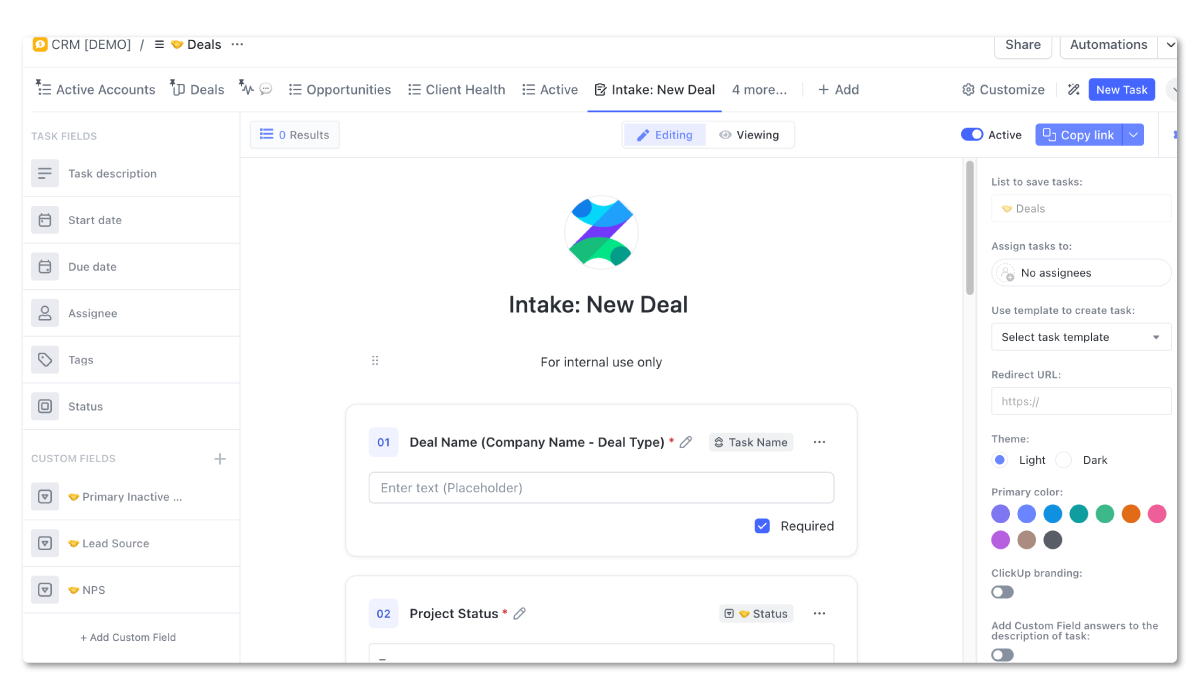
The submission creates the record task in your Deals list and can trigger a ClickUp automation that fires off onboarding tasks for your delivery team. Cleaner data entry, faster onboarding, no dropped handoffs.
Related: Client Onboarding Template (Built in ClickUp)
Pull NPS Data Into Your CRM
NPS surveys capture the candid feedback your weekly internal updates might miss. Three ways to wire it in:
- Use ClickUp forms to collect NPS responses directly.
- Use a tool like Retently plus Make to pull scores in automatically.
- Run NPS in HubSpot and sync it over via the ClickUp and HubSpot integration.
Now you have internal health scores and external client sentiment side by side on every account.
Run Sales in ClickUp Too (If You’re Small)
If you’re a smaller team and want ClickUp as your primary sales CRM, here’s the setup:
- Intake - use ClickUp forms to capture new contacts and leads. Forms can be made public and embedded on your website.
- Email - ClickUp automations can auto-send emails after form submissions, and the Email ClickApp lets you email directly from lead tasks. Remember the limit from earlier: no drip campaigns or advanced email workflows.
- Pipeline - custom fields for deal stage, lead status, lead source, and deal amount power your board view. When a deal moves to closed-won, an automation kicks off onboarding tasks and the account appears in your delivery team’s Active Accounts view.
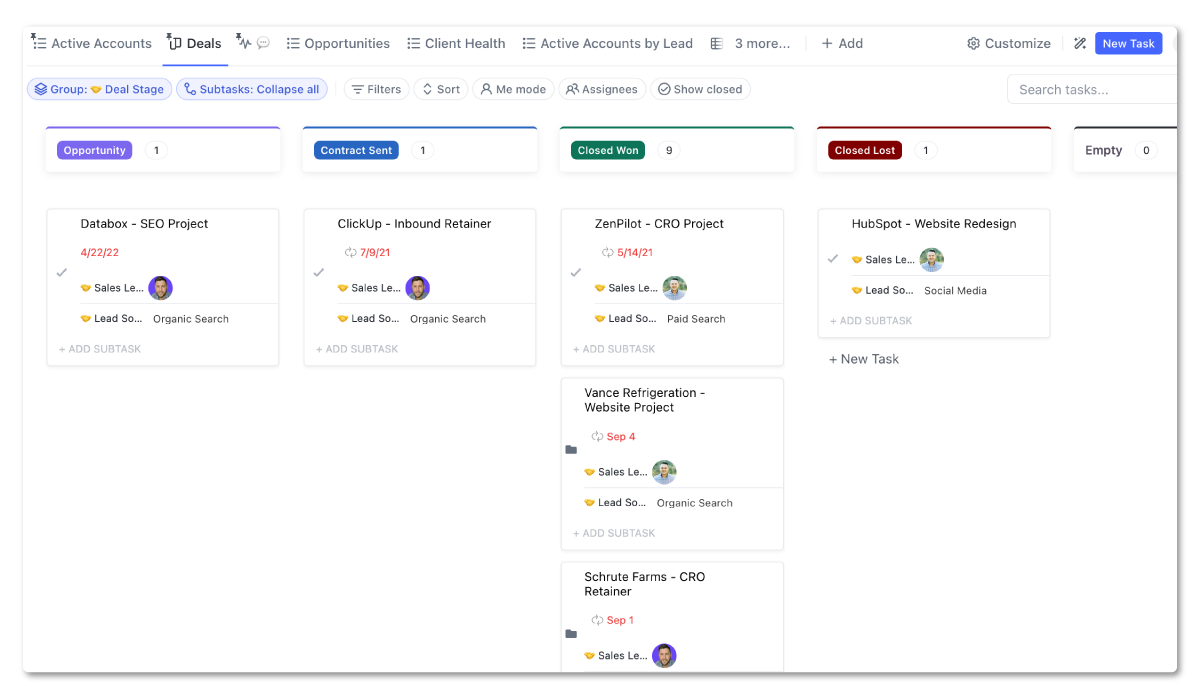
That closed-won-to-onboarding flow is the payoff. It’s the handoff most agencies fumble, and in ClickUp it’s one automation.
FAQ: Using ClickUp as a CRM
Can ClickUp be used as a CRM?
Yes. ClickUp’s lists, custom fields, relationships, forms, and views give you everything needed to track deals, companies, and contacts, run a visual pipeline, and manage accounts after the sale. It works best for small sales teams and for account management, where having client data inside your delivery tool is a real advantage. Large sales orgs with heavy email automation needs should pair ClickUp with a dedicated CRM instead.
Is ClickUp’s CRM free?
ClickUp doesn’t sell a separate CRM product, so there’s no CRM price tag. You build a CRM from features included in ClickUp’s plans: lists, custom fields, relationships, forms, and views. Which of those building blocks you get (and in what quantity) varies by plan and changes over time, so check ClickUp’s current pricing before committing to a build on a specific plan.
Does ClickUp have a CRM template?
ClickUp offers community templates, and we sell our own ClickUp CRM template, which is the same deals-companies-contacts structure from this guide, pre-built with the custom fields, relationships, and views ready to import. If you’d rather not assemble it by hand, that’s the shortcut.
Can ClickUp replace HubSpot or Salesforce?
For some teams, yes; for most sales-driven teams, no. ClickUp handles pipeline tracking and account management well, but dedicated CRMs offer advanced capabilities ClickUp doesn’t, especially marketing automation and drip campaigns. Many of our clients run both: HubSpot for sales and marketing, ClickUp for delivery and account management, connected through the ClickUp-HubSpot integration.
How do you set up a CRM in ClickUp?
Six steps: create a dedicated CRM space, build Deals/Companies/Contacts lists, add custom fields (status, health score, services, delivery lead), connect the lists with relationship fields, build pipeline and account views, then install a weekly update habit for account managers. The full walkthrough is in the tutorial above, and the video at the top of this post shows the whole build on screen.
Can clients see my ClickUp CRM?
Not unless you invite them into it, and you shouldn’t. Keep your CRM space internal. If you want clients to have visibility into their own projects, that’s a separate build - see our guide to creating a client portal in ClickUp.
Want Help Building Your ClickUp CRM?
A CRM in ClickUp gives your delivery team client knowledge inside the tool they work out of every day, and gives leadership full visibility into the history and health of every account. That’s a serious asset, and most teams never build it because it feels like a big lift.
It doesn’t have to be. We’ve built this exact system, tuned to each team’s services and sales motion, across 3,100+ client engagements. If you want it done right the first time, book a free 30-minute call and we’ll map out your CRM structure together. Worst case, you leave with a clearer picture of what to build.